Organic search refers to the traffic that lands on your website as a result of unpaid search engine results. Unlike paid search, which stems from advertising platforms like Google Ads, organic visits occur when users discover your content through search engines, click on your link, and arrive without you paying for that click.
Tracking this type of traffic tells you which pages are discoverable, which queries drive visibility, and how effectively your SEO efforts bring in visitors. Google Analytics 4 (GA4) doesn’t label everything clearly out of the box, so understanding where your natural search traffic comes from—and how to isolate AI referrals—isn’t just helpful, it’s essential for strategy.
Consider what organic search delivers your brand:
- Free visibility: Appear in front of users actively searching for what you offer, at no direct cost per click.
- Long-term return on effort: One well-ranking page can provide steady traffic for months or years.
- Search intent alignment: Organic visitors tend to be high-quality leads because they’re searching with purpose.

Making Sense of Organic Search Traffic in Google Analytics
What Does “Organic Search” Really Mean in Analytics?
In Google Analytics, organic search traffic refers to website visits that originate from a search engine’s unpaid results. Specifically, these are clicks on regular search listings appearing beneath the ads on platforms like Google, Bing, and DuckDuckGo. When a user types a query and lands on a page without clicking on a paid ad, that visit gets categorized as organic.
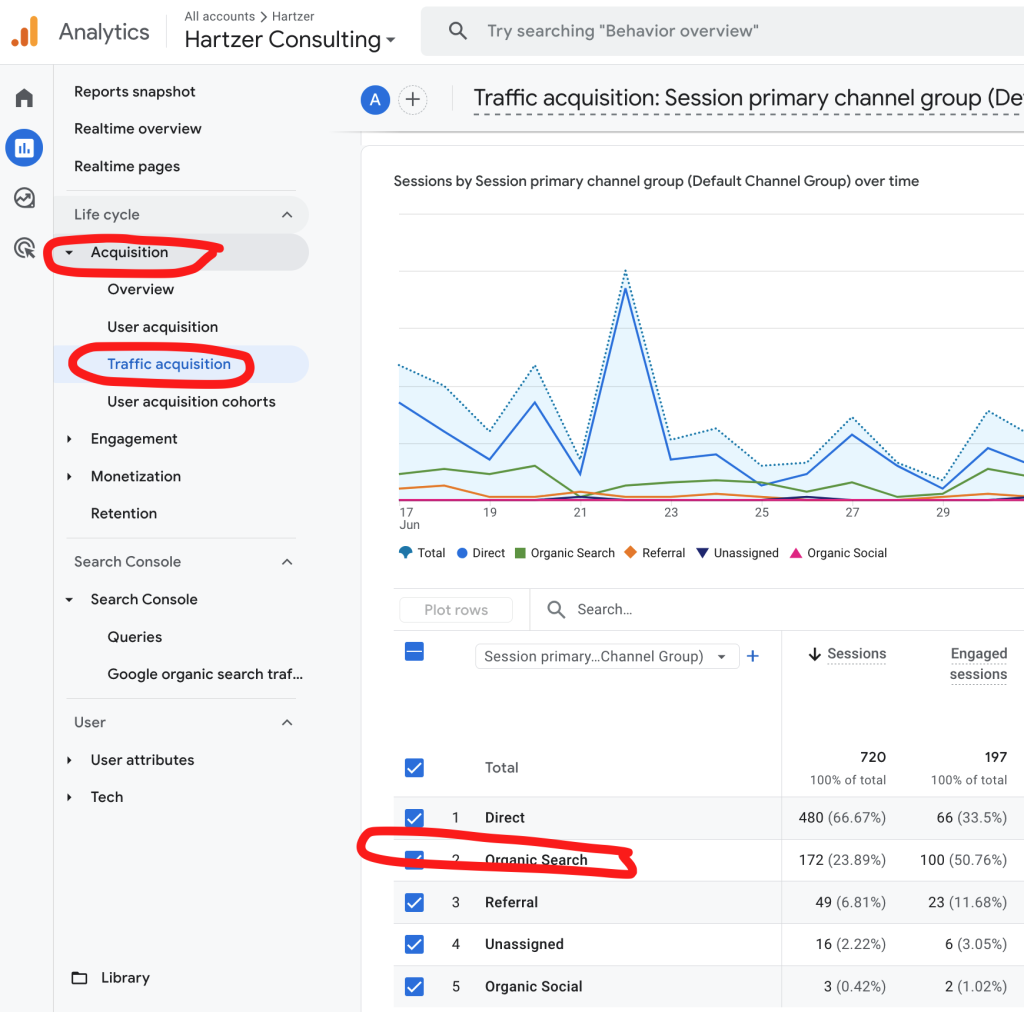
In GA4, organic search is automatically labeled under the default channel grouping named “Organic Search”. Google Analytics uses referrer information and predefined rules to group this traffic accordingly. The source typically appears as the search engine (e.g., google), and the medium is always listed as organic.
How Organic Search Differs from Direct, Referral, Social, and Paid
To properly assess the value of organic search, it helps to contrast it with other common traffic channels captured in GA4:
- Direct: Visits where no referral source is available. This includes users typing your URL directly or returning via a bookmark.
- Referral: Traffic from another website that links to your own. This could be from directories, blogs, news features, or partnerships.
- Social: Clicks from posts or links on social platforms such as Facebook, X (Twitter), LinkedIn, or Instagram.
- PPC/Paid Search: Visits from paid ads, typically marked with the medium “cpc” (cost-per-click) if set up correctly through UTM tagging.
Only the organic channel reflects unpaid visibility driven by your site’s relevance to user queries—search engines determine inclusion based on crawling and algorithmic matches.
GA4: Where All Your Organic Insights Now Live
Google Analytics 4, or GA4, replaced Universal Analytics in July 2023 as the industry standard. GA4 uses event-based tracking, a powerful upgrade from the session-based approach of previous versions. This model gives you granular insights into how users engage with your site, making it easier to isolate and study organic search impact.
Every visitor event—page_view, scroll, session_start—is tied to a user’s acquisition path. GA4 groups all natural search traffic under “Organic Search” within user acquisition and traffic acquisition reports, linking this label to actions taken throughout the user journey.
Custom Filters: Track ChatGPT, Perplexity, and Claude as Referring Sources
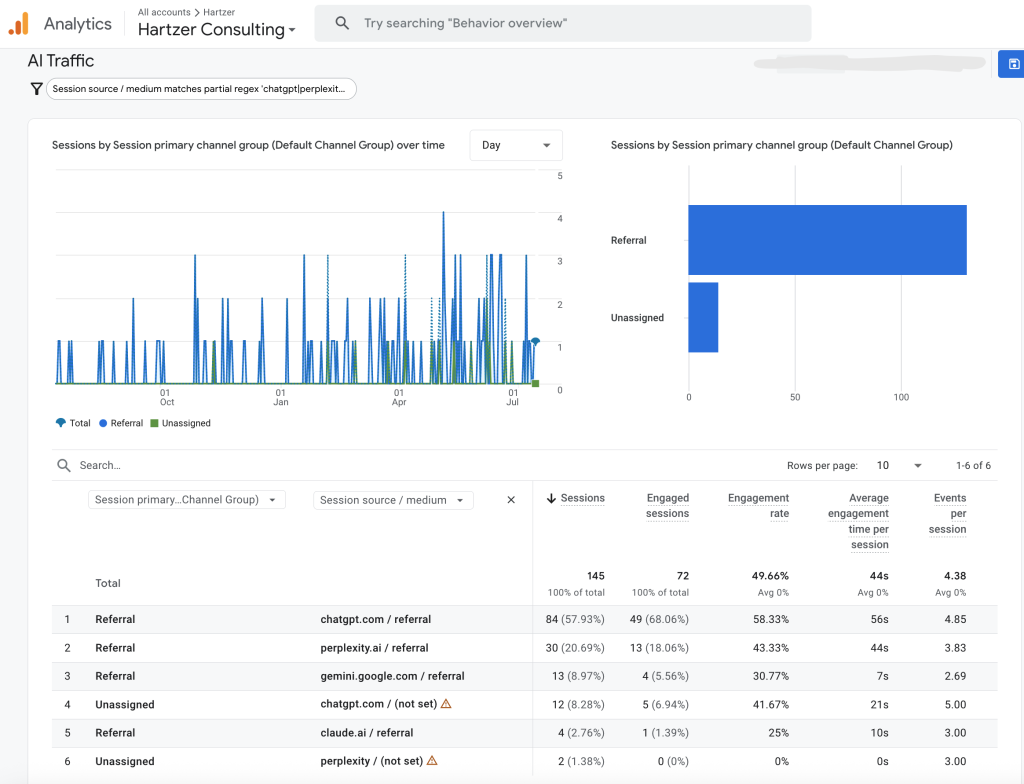
To track modern AI tools like ChatGPT, Perplexity, or Claude as traffic sources separate from traditional organic search, you’ll need to configure a custom filter or create a custom dimension in GA4. Here’s how to approach this:
- Go to Admin > Data Streams > choose your web stream.
- Under Configure Tag Settings, open List Unwanted Referrals.
- Add known AI-generated sources such as chat.openai.com (for ChatGPT), www.perplexity.ai, or claude.ai.
- To preserve and analyze them instead of excluding them, define a new custom channel group (Admin > Channel Groups) where you assign those specific domains to a new channel like “AI Referrals.”
- Use Exploration reports to filter traffic by session source = chat.openai.com, and break it down by session medium and user path to validate behavior.
This setup allows AI tools to be tracked distinctly from search engine traffic—giving clear visibility into how users arrive via conversational interfaces instead of search rankings.
Install GA4 the Right Way: Set Up Google Analytics to Track Organic Search Accurately
Create Your Google Analytics Account
To begin capturing organic search data, log in to analytics.google.com using a Google account. Click on Admin, then under the “Account” column, select Create Account. Provide an account name and define the data sharing settings. Continue to property setup, name your property (e.g. “MySite GA4”), select your reporting time zone and currency, and click Next.
For “Industry Category” and “Business Size,” make selections that reflect your business attributes. Finally, choose among the business objectives (such as Lead Generation or Online Sales). Once you hit Create, accept the data processing terms to finalize the setup.
Connect Your Website to GA4: No Developer Required
Once your property is created, Google Analytics will prompt you to start collecting data. Under “Data Streams,” select Web and enter your site’s domain and stream name. This action generates a Measurement ID in the format G-XXXXXXXXXX.
Now, you have two integration options:
- Using the Google Tag (gtag.js): Copy the code snippet provided and paste it into the
<head>section of every page on your site. If using platforms like WordPress, locate the theme header file or use a plugin like “Insert Headers and Footers.” - Using Google Tag Manager (GTM): If GTM is already installed, create a new tag with the “Google Analytics: GA4 Configuration” tag type. Enter your Measurement ID, set the trigger to “All Pages,” and publish the changes.
No dev team? No problem. Platforms like Wix, Squarespace, and Shopify offer simple GA4 integration directly within their admin settings. Just paste your Measurement ID where prompted.
Pro Tip: If you’re using WordPress, then you can use the Sitekit plugin that integrates with WordPress. It will add Google Analytics data as well as Google Search Console data.
Accuracy Check: Verify Your Google Tag or GTM Works
Before diving into organic traffic reports, confirm that data flows correctly from your site to GA4. Open your website in a new tab, then return to Google Analytics and go to Admin > Data Streams. Select your stream and click View tag instructions. Choose “Google Tag” and use Google’s Tag Assistant to verify loading status.
Alternatively, navigate to Reports > Real-time. If your visit shows up instantly, the tag is working.
Set Up a Custom Filter to Track AI-Generated Organic Referrals
GA4 doesn’t automatically classify traffic from ChatGPT, Perplexity, or Claude as “organic.” These tools typically appear as “Referral” in standard reports. To isolate and analyze this traffic:
- Log into GA4 and go to Admin > Data Settings > Channel Groupings.
- Create a new channel group or modify the existing one.
- Set rules to classify traffic that matches
source contains "chat.openai.com",source contains "perplexity.ai", orsource contains "claude.ai"as a new channel called AI Organic or similar.
Once configured, this classification will reflect in Acquisition reports. This setup ensures clicks from AI-driven answers don’t get buried under generic referrals, making your organic performance audits more precise.
Connect Google Search Console to GA4: Unify Search and Site Data
Why integrate Search Console with Google Analytics?
Linking Google Search Console with GA4 unlocks a complete view of organic performance. This integration allows direct access to search queries, impressions, clicks, and average position—all pulled straight from Search Console into your GA4 property. Instead of toggling between platforms, your SEO reporting flows into a single dashboard. The result: faster insight and less guesswork.
How to link Search Console to GA4 step by step
- Step 1: Open GA4 and go to Admin. Under the Property column, click on Search Console Links.
- Step 2: Click the Link button in the top right corner.
- Step 3: Select the Search Console account already verified for your site. The account must be linked to the same Google account tied to GA4.
- Step 4: Choose the web data stream you want to connect with Search Console.
- Step 5: Click Next, review your selections, then hit Submit.
Within 24 hours, the connection becomes active and reports start populating inside GA4.
Where to find search data once you’ve linked them
After successful linking, navigate to the left-hand menu in GA4. Under the “Reports” section, click on Library. From here, import the Search Console collection. Once imported, a new section called Search Console appears in your reports navigation.
This section includes:
- Landing Page Report: Shows which pages attract the most clicks from Google’s organic listings.
- Queries Report: Lists the actual search terms users typed to discover your site.
- SEO Performance Report: Breaks down impressions, clicks, CTR, and average position per page or keyword.
Use these reports to answer real questions. What keywords drive impressions but fail to convert? Which pages rank well but have low CTR? This is where raw search behavior meets on-site performance.
How to Locate Organic Search Traffic in GA4
Step into the Reports Section
Start by navigating to the Reports tab on the left-hand side of the GA4 interface. Within this section, click on Acquisition, then choose Traffic acquisition. This is where all inbound traffic sources are grouped and visualized by session-level default channel groupings.
Apply a Filter for Organic Search Traffic
To isolate just your organic search visitors, apply a filter to the report. Here’s how:
- Click the “Add filter” button at the top of the “Traffic acquisition” report.
- Select “Session default channel grouping”.
- Set the condition to exactly matches and choose Organic Search from the options.
- Apply the filter to see data exclusively from organic traffic.
Once applied, the entire table and associated graphs update to reflect only sessions that originated through natural search engine listings—no paid ads, no referral links.
Understand the Metrics Within the Organic Traffic Report
Four primary metrics appear at the top of the report, each offering different insight into search-driven visitors:
- Users – The total number of distinct individuals who arrived via organic search during the selected date range.
- New Users – The count of users Google Analytics hasn’t seen before, based on device and browser ID.
- Sessions – All grouped interactions from users coming from organic search. For example, if one person visits twice in a day after separate Google searches, that counts as two sessions.
- Engaged Sessions – These reflect quality visits where users stay longer than 10 seconds, view at least two pages, or complete a conversion event.
Want to dig deeper? Click on any dimension within the table—such as “Source / Medium” or “Landing page + query string”—to break down where your organic traffic originates and how it behaves upon arrival.
Make Sense of What You See: Interpreting Organic Search Data in GA4
Pages: Identify Which URLs Get the Most Organic Attention
Start by opening the Organic Search traffic report under your GA4 “User Acquisition” section. From here, switch dimensions to Page path + query string or Landing page. This reveals the site entry points that pull in organic visitors. Pages with high views and organic sessions suggest optimized topics or pages that match user search intent.
Look beyond volume. Examine engagement rate and average engagement time alongside the number of sessions. For example, a blog post with thousands of organic visits but a low average time on page may be ranking well but not meeting user expectations. Conversely, a long-read guide with fewer visits but longer sessions could be a hidden SEO asset worth promoting.
Clicks vs Sessions: Understand the Key Distinction
Clicks come from Google Search Console. They count how often someone selected your link on a Google Search Results Page (SERP). A single user clicking once equals one click. Sessions, on the other hand, are tracked in GA4 and begin when someone actively engages with your website. One click can generate zero, one, or multiple sessions depending on user behavior and cookie settings.
- One click, no session: User taps a link and immediately bounces, with no GA4 tag fired.
- One click, one session: Typical scenario — GA4 registers a session on landing.
- One click, multiple sessions: Unusual but possible if the user returns later and triggers a new session timeout.
To compare clicks versus sessions effectively, integrate Google Search Console into GA4. This gives side-by-side visibility on source clicks versus in-site user behavior.
Session Engagement Metrics: Evaluate Behavior Beyond the Click
GA4 abandoned the bounce rate in favor of more nuanced insights. Focus on engagement rate, which calculates how often visitors stay at least 10 seconds, visit two or more pages, or trigger a conversion event. High engagement percentages signal that your organic content matches visitor expectations. Combine that with average engagement time for a stronger context on session depth.
Then check conversion events. Did organic sessions lead to newsletter subscriptions, product page views, or contact form completions? Use GA4’s “Conversions” report and apply a filter for traffic source = organic. This isolates the volume and quality of converted users coming from search engines.
Set Up a Custom Filter to Track Emerging AI Referrals
Want to monitor traffic from ChatGPT, Claude, Perplexity, and other AI tools surfacing your URLs? Create a custom GA4 Data Filter to capture these agents as distinct sources within organic or referral traffic.
Once tracked, you’ll spot these under Reports → Acquisition → Traffic Acquisition, by setting the session source to the AI channels. Monitoring this gives early insights into how real users discover your content via AI interfaces—not just search engines.
Tracking Keywords Driving Organic Traffic
Use the “Queries” Report in Search Console
To uncover the search terms triggering organic clicks to your site, start with the Queries report in Google Search Console. This report shows the exact keywords users entered in Google Search that led to impressions and clicks on your pages.
In the left-hand menu, go to Performance, and under that section, choose Search results. You’ll see the Queries tab by default, displaying:
- Queries: The individual search terms that resulted in impressions.
- Impressions: The number of times your site appeared in search results.
- Clicks: How often users clicked on your listing.
- Average CTR: The click-through rate, calculated as clicks divided by impressions.
- Position: The average ranking position of your site for each query.
Using this data, you can pinpoint which terms are generating visibility and which ones convert into clicks. Sort by Clicks to find the most effective keywords, or by Position to discover low-ranking terms that could use optimization.
Find High-Traffic and High-Converting Keywords
High-volume keywords are easy to spot by sorting queries by impressions. However, high impressions mean nothing without clicks. Instead, look for combinations of high impressions, strong CTR, and an average position in the top 10. This mix signals both visibility and interest.
Once top-performing click-generating queries are identified, cross-reference them with goal completions in Google Analytics. You’ll do this by creating a secondary dimension for “Landing page” or by syncing Search Console reports inside GA4 to see query-level performance alongside conversion metrics.
To access Search Console data in GA4, navigate to Reports > Acquisition > Landing page. Then add a secondary dimension for Search query to evaluate conversion performance by keyword. GA4 obtains this keyword-level data through the connected Search Console property — without that connection, these insights remain out of reach.
Tie Queries to Landing Pages
Every search query in Search Console is linked to a landing page — the first page users visited from search. To find out which queries are driving traffic to specific pages, click on a query in the Queries report and switch to the Pages tab. This shows the landing pages associated with that term.
This connection answers questions like: which keywords are pulling visitors to a product page versus a blog post? Which search terms draw users into high-converting paths? And are pages ranking for the right terms based on search intent?
For example, a keyword like “best CRM for small business” tying to a homepage shows product relevance. But if that same term lands users on a general blog page, there might be a missed opportunity for aligning content with intent.
Which Pages Bring in the Most Organic Traffic? Here’s How to Find Out
View Which Landing Pages Attract the Most SEO Traffic
Start with the Pages and Screens report in GA4. Navigate to Reports > Engagement > Pages and screens. In this section, you’re seeing performance data for all landing pages—but that includes traffic from all sources. You need to isolate organic search.
To do that, apply a filter:
- Click the “Add filter” button at the top of the report.
- Set the dimension to Session default channel group.
- Choose the value Organic Search.
Now you’re looking at a clean list of pages people land on from unpaid search engine traffic. This filtered view highlights which URLs consistently attract organic sessions. Pages at the top signal strong search visibility and demand.
How to Assess Page Performance Beyond Clicks
Landing page traffic tells you where users start, but not how well those pages perform. To dig deeper, look at on-page engagement. In the same report, add these metrics to your table view:
- Average engagement time – Indicates how long users stay engaged with the content.
- Engaged sessions per user – Tells you whether the page encourages further exploration.
- Scrolls – Activate this event in GA4 to track how far down the page users scroll, a useful indicator of content consumption.
- Conversions – Use this to identify top-performing organic pages that directly influence your goals (form completions, purchases, etc.).
Want to see conversions by landing page from organic search traffic only? Create a comparison segment:
- Click “Add comparison” at the top of the report.
- Set the dimension as Session default channel group with the value Organic Search.
- Select the metric Conversions or a specific event like “generate_lead” or “purchase” depending on your GA4 setup.
This lets you compare each organic landing page’s ability to generate business outcomes, not just idle clicks.
Prioritize These Pages for Optimization or Content Updates
Not every high-traffic page delivers the same impact. Pages with strong traffic but weak engagement or conversion metrics need attention. Use the Pages and Screens report to sort and highlight:
- Pages with high organic sessions and high bounce or low engagement metrics—these may need better content structure or clearer CTAs.
- Pages with strong conversion rates—consider if similar content formats or topics can be replicated.
- Posts ranking high in impressions but low in traffic (from Search Console data)—these likely rank in lower positions and could benefit from SEO refreshes or improved targeting.
Identify patterns: Are certain topics consistently pulling in organic interest? Are top-performing pages using a particular content format (guides, tools, FAQs)? Use these insights to inform your future content roadmap.
Track Growth, Spot Trends: Measuring SEO Performance Over Time in GA4
Compare Date Ranges to Detect Real Progress
To identify whether SEO efforts are producing results, tap into GA4’s date range comparison feature. At the top-right corner of most GA4 reports, adjust the date range and check the “Compare” box. Choose equivalent past periods—last 28 days vs. previous 28 days or this quarter vs. the last one. This side-by-side timeline lets you track real shifts in traffic, engagement, and conversions specifically from organic sources.
For example, if sessions from organic search jumped by 22% in the current month compared to the previous, and average engagement time per session also grew, that signals traction. Combine this with metrics like engaged sessions per user or scroll depth to validate that visitors are not just landing but interacting meaningfully with content.
Spot Seasonal Patterns in Organic Traffic
Not all traffic dips or spikes indicate performance issues or SEO wins—some follow natural seasonal swings. Use a 12-month or year-over-year comparison to uncover whether fluctuations align with industry seasonality. For instance:
- Retail sites often spike between November and December.
- Home services might peak during spring and summer months.
- B2B platforms usually slow down during late December holidays.
To analyze seasonality, set your GA4 report to display data for the last 12 months, then overlay organic traffic. See how traffic climbed or dipped around key months. Pair this with Google Trends data for core keywords to reveal if changes follow consumer intent patterns across search engines.
Measure Before & After SEO Changes
Timeline markers matter. Launching a new SEO strategy, publishing optimized content, or restructuring topic clusters? Create an annotation spreadsheet or use internal documentation to log implementation dates. Then, use GA4 to monitor:
- Page views to newly optimized pages
- Average session duration for organic visitors
- Click-through rates (CTR) changes via Query reports (when integrated with Search Console)
Want to go deeper? Use GA4’s “Explorations” feature. Build custom reports that chart engagement or conversions over time, using “Organic Search” as the session default channel. Layer in events or conversions to pinpoint what improved after your SEO updates took effect.
How to Track What Organic Visitors Do on Your Site in GA4
Use the Engagement Reports to See What Happens After the Click
When users land on your site through organic search, the next step is understanding how they interact with your content. In Google Analytics 4 (GA4), this means diving into the Engagement section. The path: Reports > Engagement > Pages and screens. This shows which screens and URLs are visited most often and for how long.
To surface organic sessions specifically, apply a filter under “Session default channel group” and include only Organic Search. What you’ll see is a breakdown of user behavior specifically from search traffic: how many engaged sessions occur, how long people stay, and what events they trigger.
Key Metrics That Reveal User Intent and Value
- Scroll depth: GA4 tracks scrolling as an event. Users who scroll down 90% of a page signal high content consumption. Look for the “scroll” event under Engagement > Events.
- Clicks: If you’ve set up enhanced measurement, outbound link clicks are automatically recorded. These show interest in external resources mentioned in your content.
- Video engagement: For embedded YouTube videos, interactions like “video_start” or “video_complete” reveal how fully users consume dynamic content.
- Conversion events: Whether it’s a contact form, an ebook download, or a purchase, GA4 lets you define any valuable interaction as a conversion and view it within organic sessions.
Visualize the Path Users Take with Behavior Flow
If you’ve enabled Enhanced Measurement in GA4, the system picks up user activity without any extra tagging. Although GA4 doesn’t have a direct equivalent to Universal Analytics’ behavior flow report, you can reconstruct user paths using Exploration reports.
Create a new exploration using the Funnel or Path analysis templates. Set “Session default channel group” to Organic Search, and choose dimensions such as “page_path” or “event_name.” This uncovers the typical journey users take from landing page to final goal — whether that’s a second page view, a click, or a conversion.
Add Tracking for AI-Generated Organic Traffic (ChatGPT, Perplexity, Claude)
Not all organic traffic comes from Google. Referrals from AI tools like ChatGPT, Perplexity, or Claude show up in GA4 as referral traffic — unless you recategorize them. To treat these as organic search visitors, create a custom channel group:
This lets you track ChatGPT-style interactions as part of your natural search analysis rather than referrals, bringing them into alignment with your broader SEO performance insights.
Zooming In: Filter Organic Search Traffic by Device, Location & Source
Segment Traffic by Device Type Using Secondary Dimensions
Device behavior paints a clear picture of how users interact with your content. In GA4, filtering organic search traffic by device starts with navigating to the Traffic acquisition report under the Acquisition section. Once on the report, apply a filter to include only the Session default channel group = Organic Search.
From here, click the ‘+’ sign beside the primary dimension and select Device category as a secondary dimension. This splits the organic traffic into desktop, mobile, and tablet segments. You can compare session volume, engagement rate, conversions, and bounce rate per device.
How do mobile users behave compared to desktop visitors? Do tablets convert at all? The device category breakdown gives you those answers fast.
Drill Down on Location: Discover Where Organic Visitors Come From
To explore geographic trends, start again in the Traffic acquisition or User acquisition report. Once filtered for Organic Search, add a secondary dimension such as Country, Region, or City. You’ll instantly see how organic performance varies by geography.
You might find surprising regional engagement spikes or locate underserved areas where the bounce rate is high. This data influences location-based optimization efforts—think multilingual SEO, geotargeted content, or local backlinks.
Break Out Sources Driving Organic Traffic
GA4 automatically groups organic traffic under “Organic Search,” but you can extract deeper granularity using the source dimension. Once again, apply a filter for Organic Search traffic, then add the Session source as a secondary dimension.
This reveals which search engines are delivering traffic—typically Google, Bing, DuckDuckGo, and Yahoo. Compare metrics like engagement time and conversion per source. If Bing sends highly-engaged visitors, is your content optimized there?
Create Custom Comparisons to Layer Dimensions
GA4 also supports custom comparisons. Click on “Add comparison” at the top of your report. Set up filters such as:
- Device category is mobile
- Country contains Canada
- Session source exactly matches Bing
This allows you to compare performance side-by-side. Maybe Bing traffic from Canada on mobile devices converts 25% higher. Combining analytics filters like these reveals intersections between segmentation layers that aren’t visible in isolated views.
Tracking Organic Traffic from ChatGPT & Emerging AI Tools
AI-generated answers increasingly lead to website visits. To capture this traffic, create a custom filter in GA4:
- Go to Admin > Data Settings > Data Filters.
- Create a new filter targeting Session source dimension with values like chat.openai.com, perplexity.ai, or claude.ai.
- Set filter mode to Testing first, or Active to apply immediately.
Once active, GA4 will separate natural traffic arriving from AI tools that link back to your site. This captures organic referrals beyond traditional search engines—reflecting how modern search behavior is shifting.
Turning Organic Search Data into Strategic SEO Decisions
Use Data to Guide Your Content and Keyword Planning
High-performing content leaves a data trail. Instead of guessing what users want, analyze the pages already driving traffic from organic search. Within GA4, locate the “Traffic acquisition” report, then filter by Session default channel group = Organic Search. From there, drill into landing pages and pair the links with keyword data pulled from Search Console.
When certain URLs consistently attract clicks but show incomplete coverage of a topic, expand on those themes. Use the actual queries people search to guide new content. Sort by impressions and CTR in Search Console to uncover keywords you rank for—but don’t own. These are signals that users are interested, but the content or meta data isn’t compelling enough to win the click. Adjust headlines and meta descriptions to match search intent more closely.
Update Underperforming High-Interest Pages
Look for pages that show strong impression count but low engagement or conversions. These represent low-hanging fruit. Users are discovering the page, but they’re not staying or converting. That disconnect usually points to either poor content relevance, poor UX, or unoptimized calls-to-action. Improve readability, streamline navigation, and allow the search query to shape the format and language of the content.
For example, if a blog post about “affordable bookkeeping software” for small businesses ranks moderately well but sees a high bounce rate, check whether the content delivers useful comparisons or pricing insight. Does it reflect the user’s commercial investigation intent? If not, revise it to answer those questions better.
Fill Content Gaps Based on Actual Search Queries
Query data from Google Search Console exposes what your site doesn’t currently answer well. Export keywords with decent search volume but with low-ranking URLs or no matching page. Group these queries into thematic clusters and evaluate whether it makes sense to combine them into comprehensive guides, service pages, or FAQ sections.
When users frequently search things like “how do I deduct home office expenses as a freelancer?” but your tax advisory site lacks a resource for freelancers, that’s a clear path forward. Let the gaps in content reflect the opportunities for site growth, not just traffic acquisition.
Set Up Custom Filters to Identify AI Traffic Sources
As search behavior extends into AI platforms like ChatGPT, Claude, and Perplexity, you can set up custom referral tracking in GA4 to isolate sessions coming from these sources. Here’s a quick method:
- In GA4, go to Admin > Data Streams, select your site’s data stream.
- Click Configure Tag Settings, then choose List Unwanted Referrals if you want to exclude them, or skip if you want to analyze this traffic.
- In the Reports > Traffic Acquisition section, click + Add Filter and set Session source / medium.
- Use filters like: source contains ‘chat.openai.com’, ‘claude.ai’, or ‘perplexity.ai’.
- Create a Custom Exploration report to view user behavior, engagement time, and conversion rate from these AI-driven referral paths.
Tracking natural traffic from AI bots shaping online behavior gives an edge over competitors waiting for it to appear in default channels. Organic insights aren’t just historical data—they’re signals of what to act on next. Follow them logically, adjust pages, create new ones, and re-prioritize your SEO roadmap with facts rather than hunches.
Why Can’t I See My Organic Search Data? Let’s Troubleshoot
Common Reasons Organic Search Traffic Isn’t Showing
Organic search data in GA4 might not appear for several reasons, most of which stem from setup or configuration issues. Here’s what to look for first:
- Missing GA4 Tag Installation: Without the Google Analytics 4 tag correctly implemented on every page, GA4 won’t track any data. Use your website’s CMS (like WordPress or Shopify) or add the tag manually in the site’s header.
- Delay in Data Processing: GA4 doesn’t report data in real time for most standard reports. Expect a delay of up to 24–48 hours for organic traffic to appear in the “Traffic acquisition” section.
- Improper Filters: Internal traffic filters, misconfigured event filters, or faulty view settings in connected tools like Google Tag Manager can unintentionally exclude organic traffic.
For example, if you’ve filtered traffic by hostname or IP address to block bots or employees, but the filters are too broad, genuine search visits could be cut off. Always audit your conditions line by line—don’t just rely on presets.
Test Your Setup with Debugging Tools
Before jumping into GA4 reports, validate whether your tracking tag delivers data correctly. These tools will help pinpoint tagging errors:
- GA4 DebugView: In GA4, go to Admin > DebugView. Activate debug mode using the GA4 Debug Chrome Extension or by enabling debug_mode in your GTM tags. If your own visits appear here, the tag is firing correctly.
- Google Tag Assistant: Install the Chrome extension, open your website, and activate it to see if the relevant GA4 configuration tag loads. Look for green indicators and no error messages.
- Google Tag Manager Preview: If you use GTM, enter preview mode to test whether the GA4 config tag and any event tags correctly trigger on page load.
If nothing shows up on these tools, the tag isn’t installed or it’s blocked by your site theme, cookie consent, or browser extensions.
Check Your Search Console Integration
GA4 relies on Google Search Console to enrich your site’s search traffic reporting. To confirm the integration:
- In GA4, navigate to Admin > Search Console Links.
- Ensure your website is linked to a verified GSC property matching your GA4 stream domain.
- If there’s no property listed, go to your Search Console account, verify ownership of your site (if you haven’t), then return to GA4 to link it.
Once connected, GA4 will surface search query data, impressions, click-through rates, and more in the “Search Console” report collection. Missing this connection? You won’t see organic keyword-level data at all.
Still No Organic Activity? Do a Manual Source Check
Sometimes, organic visits get misclassified due to the referring domain or the browser’s settings. In GA4, run a custom exploration:
- Go to Explore > Blank Report > Free Form.
- Set session default channel group as a dimension and pull in metrics like sessions or users.
- Look for “Organic Search.” If it’s absent but “Unassigned” is high, start investigating the referral sources under session source/medium.
This exploration may reveal that organic traffic is flowing in—but marked as unclassified traffic due to site setup or missing user consent for cookies.
Using UTM Parameters to Separate Paid and Organic Campaigns
Define and Control with UTM Tracking Parameters
UTM parameters are short code snippets appended to a URL to track the effectiveness of campaigns in Google Analytics. Each parameter tells GA4 where visitors came from and how they found your content. When used consistently, UTM tagging removes the guesswork from identifying which traffic is organic and which comes from paid marketing efforts.
There are five standard UTM tags:
- utm_source: Identifies the source like Google, Facebook, or a newsletter.
- utm_medium: Designates the type of channel, such as cpc, email, or organic.
- utm_campaign: Names the specific campaign, like spring_sale or product_launch.
- utm_term: Tracks keywords for paid campaigns, though less relevant for organic tracking.
- utm_content: Differentiates similar links within the same campaign—useful for A/B testing.
To isolate organic performance, don’t use UTM query strings on backlinks you don’t control—like natural mentions on blogs or review sites. Google categorizes those as “Referral” or “Organic” without needing extra tags. Instead, apply UTM tags strategically to your paid and promotional campaigns to keep things organized and make untagged traffic easier to evaluate.
Draw Clear Lines Between Paid, Social, and Organic Campaigns
Confusing campaign tagging muddies your reports. Avoid using “organic” for utm_medium values unless you’re manually controlling the context. For example:
- Email campaigns: utm_medium=email, utm_source=newsletter
- Paid Facebook ads: utm_medium=paid_social, utm_source=facebook
- Organic Facebook posts (if you track them): utm_medium=social, utm_source=facebook
- PPC campaigns: utm_medium=cpc, utm_source=google
Leave true organic sources—those from untampered search engine results—untagged. GA4 classifies them automatically under Default Channel Grouping as “Organic Search” or “Organic Social.” That separation ensures your SEO performance remains distinct from your ad campaigns in reporting dashboards.
Build Links Accurately with the Right Tools
Google offers a free Campaign URL Builder tool that simplifies UTM construction. Input the URL, source, medium, and campaign name. The tool auto-generates the full trackable link you can use in ads, emails, and external promotional materials.
Marketing platforms like Mailchimp, HubSpot, or Meta Ads Manager also include native UTM tagging tools. Customize them to reflect your internal naming conventions and make GA4 reports more digestible. Consistency in structure enhances your ability to segment by attribution channel and campaign type later.
When used properly, UTM tagging doesn’t mix organic with paid traffic; it draws lines that help analysts read patterns without wading through clutter. Looking to track precise ROI or compare email vs. SEO performance? Implement structured tagging—then let GA4 surface the story behind the clicks.
Turning Search into Growth: How Organic Traffic Builds Small Business Success
Organic search does more than drive website visits — it directly supports the visibility, credibility, and long-term growth of small businesses. Unlike paid channels that stop delivering the moment budgets dry up, the benefits of strong SEO accumulate over time and build business equity.
Three Specific Wins from Organic Search
- Visibility where it counts: High rankings for targeted search queries place small businesses directly in front of customers when they’re actively looking for solutions. That visibility isn’t temporary — it generates continuous impressions, brand exposure, and relevant traffic.
- Trust that’s earned: Users often skip past paid results in favor of organic listings. Appearing at the top of those results signals authority and reliability, especially when supported by high-quality, helpful content.
- Growth without advertising spend: With the right strategy, small businesses can use SEO to acquire customers consistently at a lower cost than paid campaigns — and without depending on weekly ad budgets or auction dynamics.
Start Small, Improve Continuously
You don’t need an agency team or a six-figure budget to make organic search work. Begin with what’s already available:
- Check your search traffic in GA4 once a week. See what’s climbing — and what’s sliding.
- Look at your top organic pages in the “Traffic Acquisition” tab and assess whether they answer the intent behind the keyword. If not, tweak and expand the content.
- Review bounce rate and engagement time for organic visits. Long time-on-page often points to useful content.
From there, optimize iteratively — update one underperforming page, refresh an outdated how-to post, or tweak your page title to better align with real search queries. Each small action compounds the impact.
Tools That Make the Process Easier
- Google Analytics 4: Tracks sources of organic search, page performance, engagement metrics, and conversions.
- Search Console: Shows impressions, clicks, and exact queries that bring users to your site — straight from Google’s index.
- Yoast SEO (for WordPress sites): Helps fine-tune content and technical SEO elements like meta tags, schema markup, and readability.
Custom Filter Setup to Track AI-Sourced Organic Traffic
Want to isolate referral traffic coming from emerging AI tools like ChatGPT, Claude, or Perplexity? Here’s a setup you can use in GA4:
- Go to Explore and create a new Blank exploration.
- Import Session source/medium and Page path + query string as dimensions.
- Add Sessions and Engaged sessions as your key metrics.
- Under Filters, input a condition: Session source contains “chat.openai.com”, “claude.ai” or “perplexity.ai”.
This filter will isolate sessions that originate from AI-driven discovery platforms often excluded from traditional organic reporting. As more users turn to these tools for answers rather than classic search engines, tracking this new traffic pattern gives small businesses an edge in visibility strategy.
Five Practical SEO Action Steps for Small Business Owners
Organic traffic data has a direct line to what your audience wants. Seeing what people visit without clicking on ads reveals the honest impact of your content, site structure, and messaging. Here are five clear, no-fluff tasks every local business can do this week to turn GA4 data into SEO wins.
1. Set Up or Verify Your Google Analytics and Search Console Accounts
Without both tools properly connected, your visibility into organic search stays partial. Log into your Google Analytics account under your business email. Navigate to Admin > Data Streams and confirm your site is sending traffic data. Then head to Admin > Product Links to connect Google Search Console. No connection means no keyword or page-level queries from Google search inside GA4—something you’ll want for every next step.
2. Find and Review Your Top-Performing Organic Pages
In GA4, go to Reports > Acquisition > Traffic acquisition, then filter by Session medium = organic. Once filtered, add a secondary dimension such as Page path and screen class to find high-traffic organic URLs. These pages already rank and attract users—looking at them shows exactly which topics and content formats connect with search users. Ask: What is this page doing right?
3. Track a Few Core SEO Keywords
Via the Google Search Console integration, browse to Reports > Search Console > Queries. Sort by clicks or impressions. Choose three to five keywords that are either:
- Brand-aligned and descriptive of your services
- Already ranking around positions 5–15 (where small changes can produce big jumps)
- Getting traffic despite low rankings (indicates opportunity)
Create a small tracking sheet. Record current rankings once this week. Website content or meta title tweaks will show results in that ranking position more clearly over time.
4. Set One Simple SEO Conversion Goal
In the GA4 Admin panel, open Events and see which actions are already being tracked. If a form submit, phone click, or newsletter signup exists as an event, use the Mark as conversion setting. Now you’ll start seeing which organic pageviews lead to that key action. With this on, your organic performance gains sharp definition—not just traffic, but results.
5. Plan One Blog Post or Website Update Using Organic Data
Use keywords from GSC and insights from your top-performing pages. Maybe your “fix leaky faucet” blog ranks on page two. That’s a cue to update the content—add structured steps, internal links, or FAQs. Publish one strategic piece or page improvement this week, then monitor results inside GA4’s organic page report over the next 30 days.
Bonus: Set Up a Custom Filter for AI Referral Search Traffic
To capture visits from ChatGPT, Claude, or Perplexity when they link back to your site, create a custom exploration or segment. Go to Explore > Free Form, add a dimension for Session source or Session source / medium, and include terms like:
- chat.openai.com
- perplexity.ai
- claude.ai
Label this segment as “AI Referrals.” GA4 doesn’t group these under organic search, but depending on how AI tools link back, those entries may still reflect discovery via informational searches. Tracking them separately gives you insight into non-traditional organic visibility and brand penetration.
Even if SEO feels technical, with just a few clicks in Google Analytics, you’ll be seeing what’s working, what to improve, and where your business is headed online. Start checking your organic traffic today—it’s free and powerful data waiting to work for your business.